Record an expense
Recording an expense takes seconds: the amount, the wallet it comes from, the category. The balance and your budget envelopes update straight away.
This is the core gesture in Piff, the one you will repeat every day. Everything lives on a single screen: no multi-page wizard, no pointless required field. The amount and the category are enough — the rest is already filled in with sensible defaults.
- 11 / 5
Open Expense and type the amount
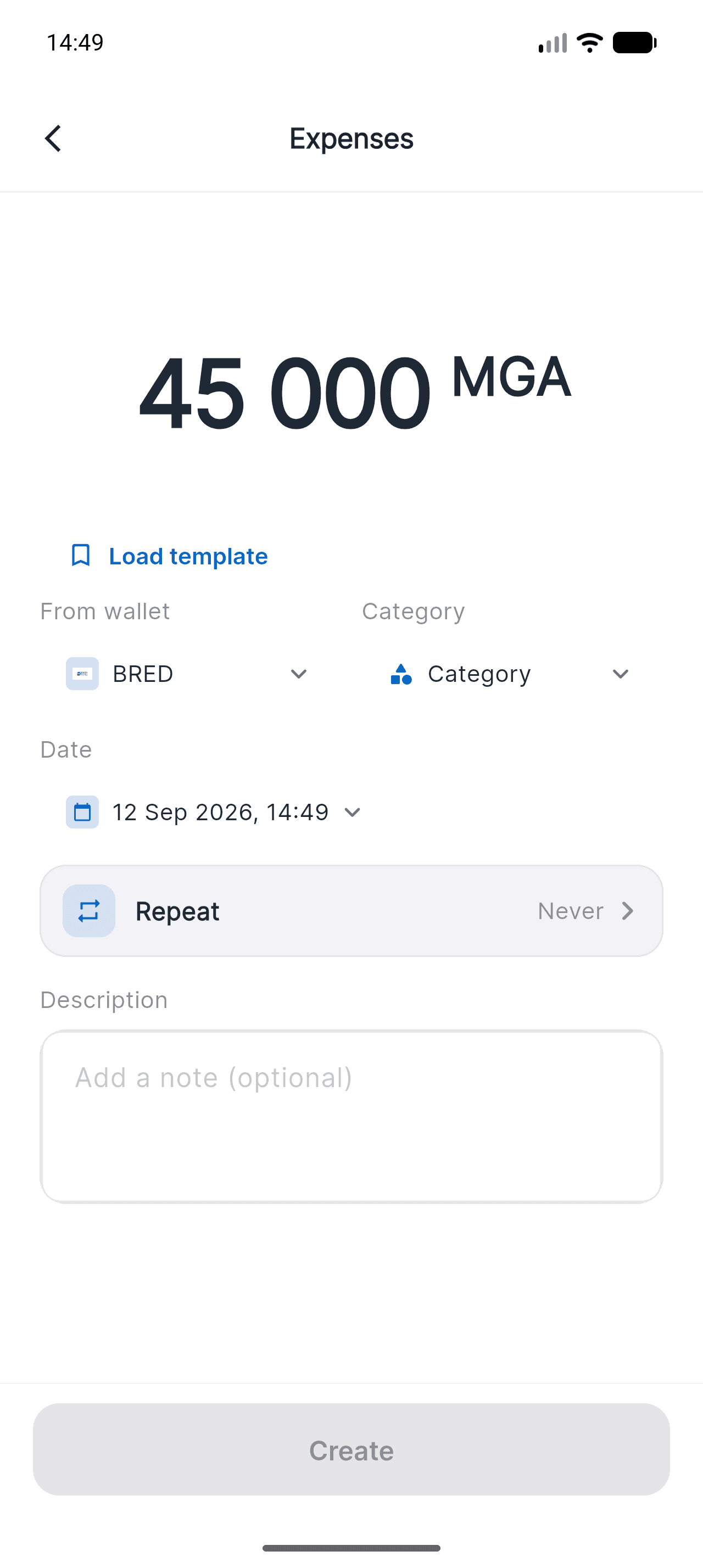
From the home screen, tap Expense (or the + in the bottom bar). The keypad opens straight on the amount, in the currency of the selected wallet.
The “From wallet” row shows which account will be debited. Tap it to pick another one: the list shows each balance.
- 22 / 5
Pick the category
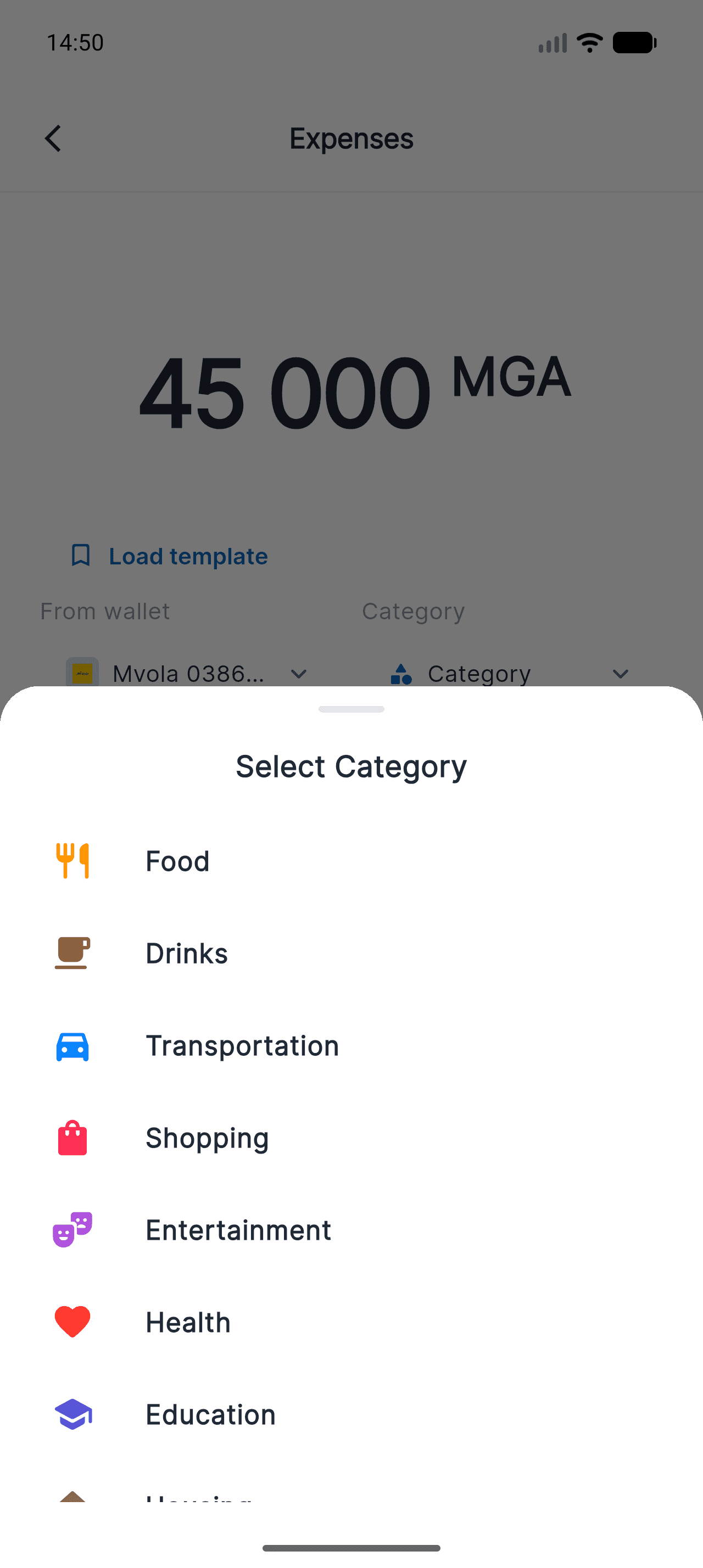
Tap Category: Food, Drinks, Transportation, Shopping, Entertainment, Health, Education, Housing… This is what later sorts your spending in the analytics and tracks your budget envelopes.
You can create your own categories from Profile > Manage categories, each with its icon and colour.
- 33 / 5
Add a note, check the date
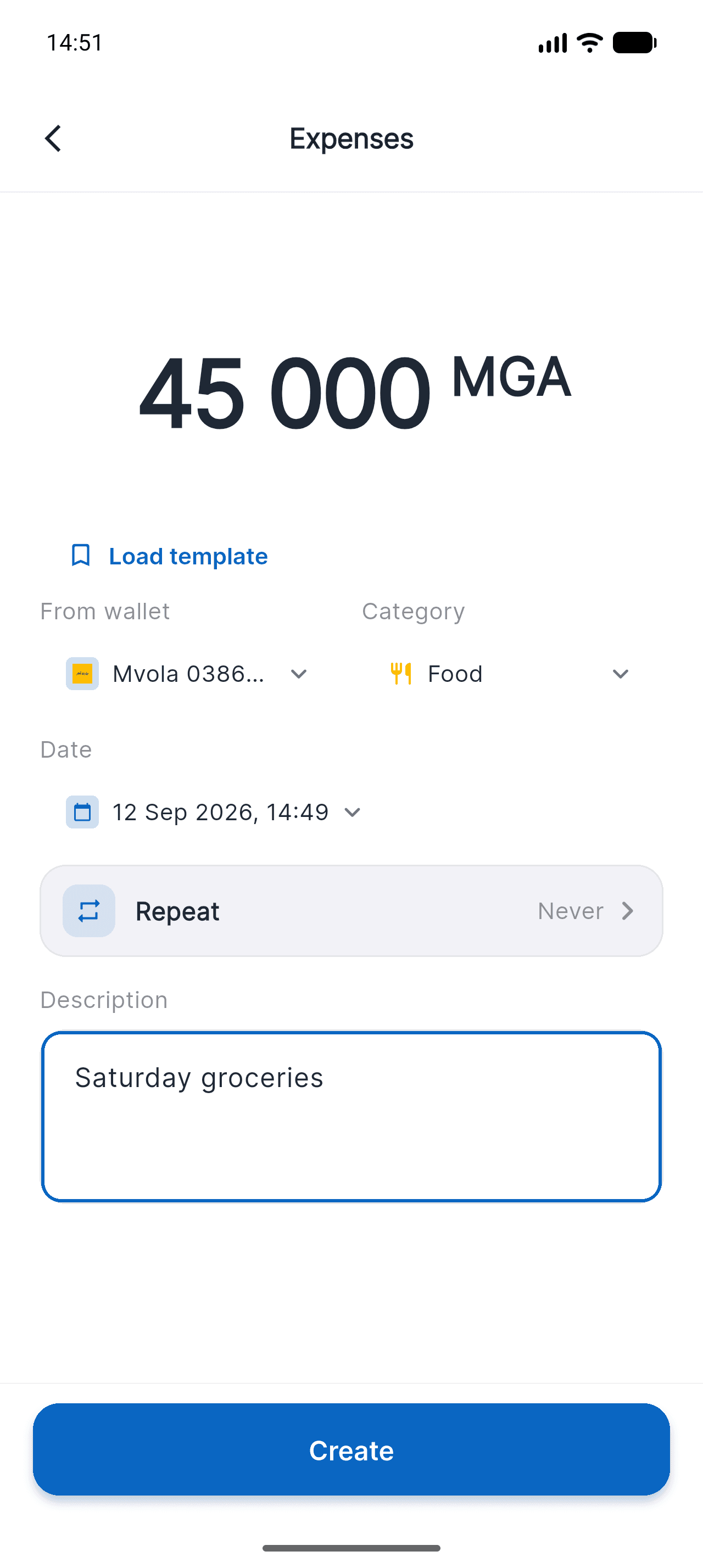
The date is already set to now: only tap it if you are recording yesterday's spending. The description is optional but invaluable when you read it back three months later. Then tap Create.
The Repeat row just above turns this expense into a recurring rule if it comes back every month.
- 44 / 5
The expense shows up right away
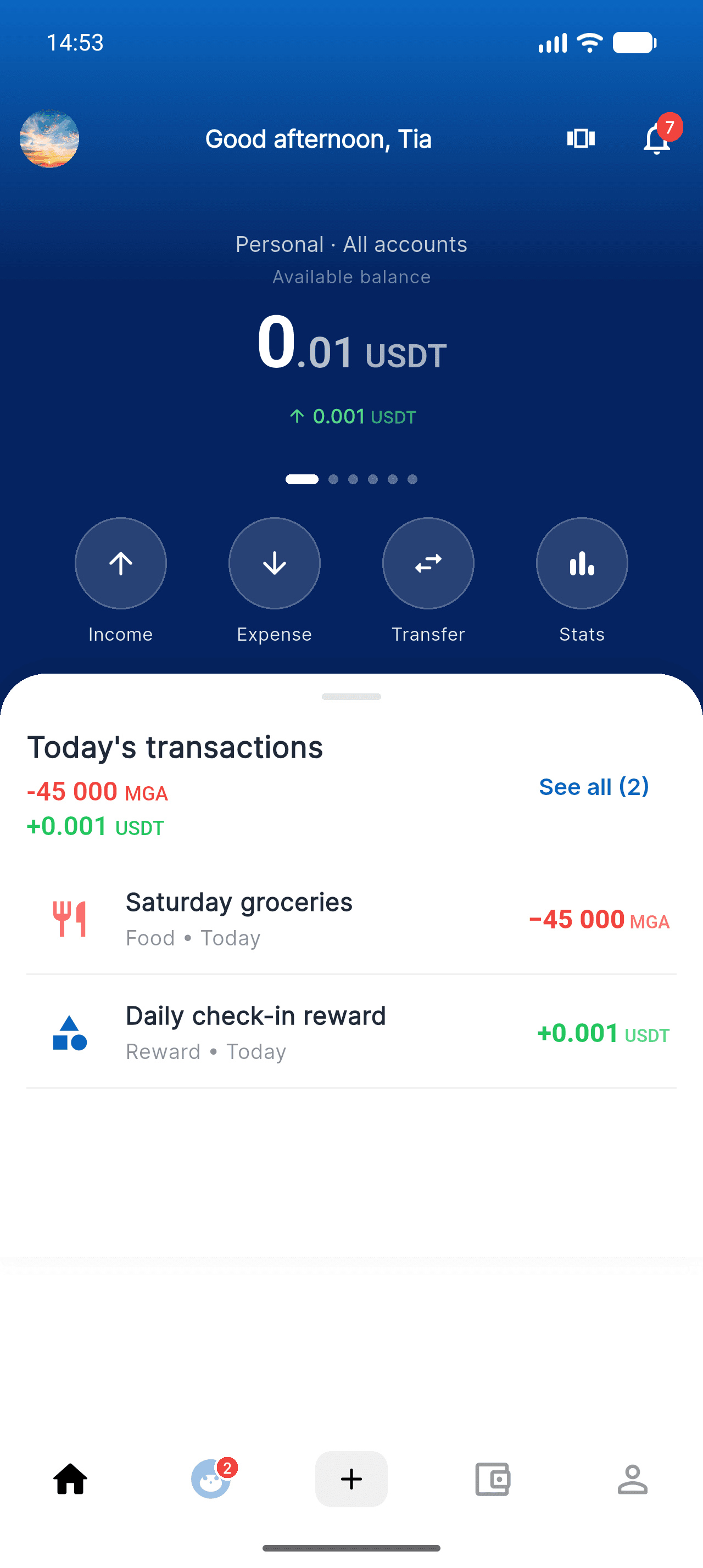
Back on the home screen it appears under “Today's transactions”, and the daily summary is updated currency by currency. The debited wallet has already gone down by the same amount.
- 55 / 5
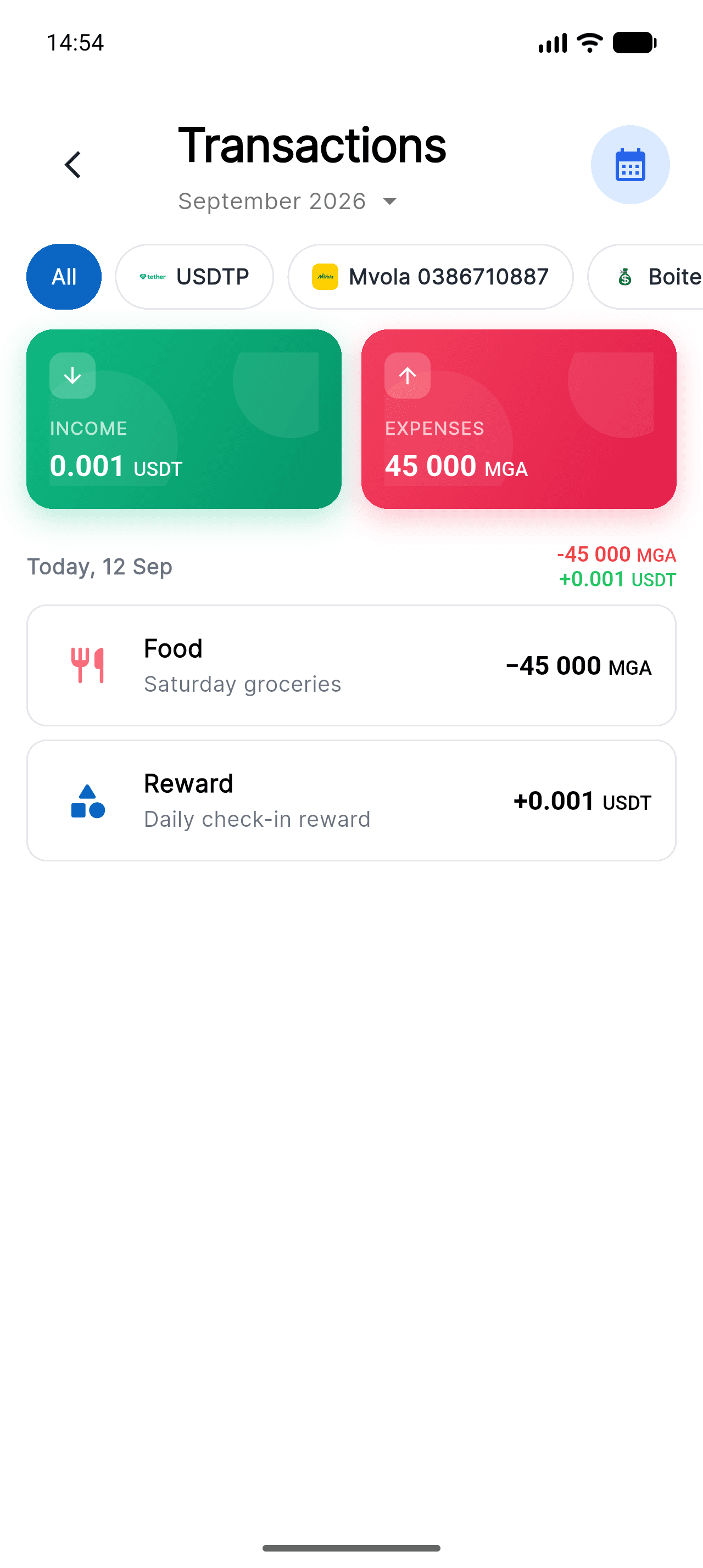
Find everything in the history
“See all” opens the Transactions screen: income and expenses for the month, a filter per wallet, a month picker. Tap a row to see the detail, edit it or delete it.
Deleting a transaction automatically restores the wallet balance to what it was.
Good to know
- Income and transfers between two wallets work exactly the same way: only the button you start from changes.
- If the category you picked is tracked by a budget envelope, that envelope updates instantly and warns you before you go over.
- Templates (Load template, at the top of the form) save a typical expense — same amount, same wallet, same category — so you can re-enter it in one tap.

Take control of your money
Free on iOS. Less than two minutes to get started.